


Video Maker Music Video Editor
4.416.14K Reviews
App Specs
- Version
- 6.7.0.0
- Updated On
- License
- Free
- Downloads
- 100,000,000+
- Developer
- VIDEOSHOW Video Editor & Maker & AI Chat Generator
- Categories
- Video Players & Editors
- Platform
- Android, iOS
Screenshots
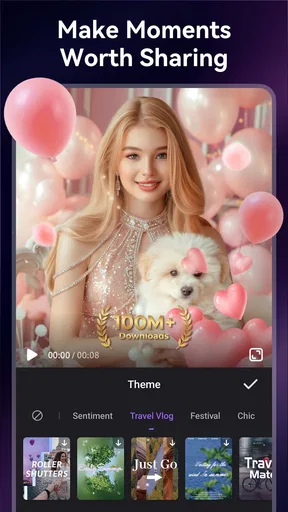
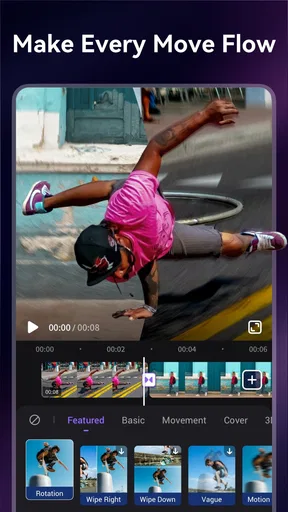
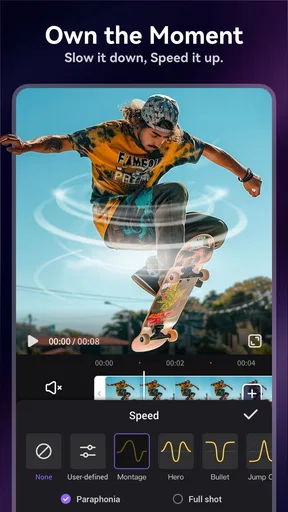
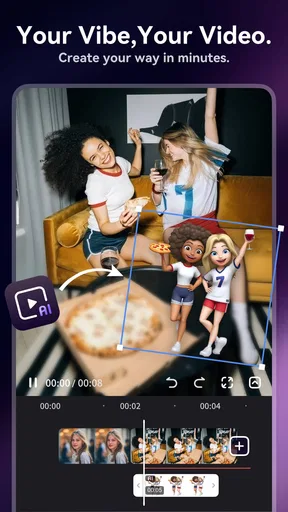
 Analysis by AppCompare
I judge a mobile editor less by how many effects it can show me than by whether it helps me finish a video without turning a small task into an evening project. AI Video Maker AI Video Editor aims for that quick, guided style of editing: useful when I want a lively result from everyday clips, but not a substitute for a desktop editor when a project needs precise control. Its appeal is convenience, and that same emphasis makes it important to know what kind of editing you actually want to do.
A quick editor for everyday footage
Filmigo is a video editing app from VIDEOSHOW Video Editor & Maker & AI Chat Generator. It sits in the video players and editing space, is free to install, and has an average rating of 4.4 from around 1.3 million ratings. More than 100 million installs suggest it has reached a broad audience, though popularity alone doesn’t tell me whether its workflow will suit you. The app is rated Teen, and optional in-app purchases range from $0.99 to $199.99 per item, so I’d check the purchase screens carefully if I planned to use it regularly.
The central question is whether a guided mobile workflow is more useful to you than a blank timeline. I find this kind of editor most appealing when I already know the feeling I want—a quick recap, a short clip with music, or a playful montage—but don’t want to build every visual choice from scratch. The AI angle can make getting started feel less intimidating, while the ability to adjust the result matters because an automatic suggestion is a starting point, not a guarantee that the finished video matches your taste.
For a simple family recap, for instance, I’d pick a handful of clips, decide which moments deserve the most time, and use the editor to give them a consistent mood. I’d still watch the whole result before sharing it: automatic pacing can make a sequence feel energetic, but it may also rush past a moment I care about. That final check is a small habit that makes a noticeable difference, especially when the app’s convenience encourages you to finish quickly.
Getting Started with AI Video Maker AI Video Editor
First things first, downloading and installing the app was a breeze. It’s available on both Android and iOS, so no matter your device, you’re good to go. Once you fire it up, you’re greeted with a sleek, user-friendly interface that doesn’t overwhelm you with too many options. It’s clear they’ve designed this app with both beginners and seasoned editors in mind.
Features that Stand Out
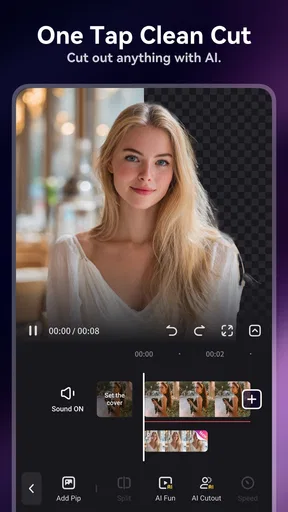
Let’s talk features, because AI Video Maker AI Video Editor packs quite a punch. The AI-driven editing tools are the star of the show here. Imagine having an assistant who knows precisely what you want your video to look like—even before you do! The app analyzes your clips and offers suggestions for cuts, transitions, and effects. It’s like magic, but with algorithms.
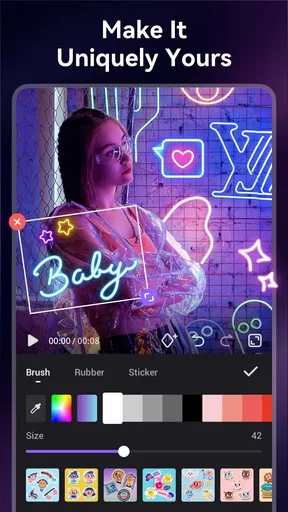
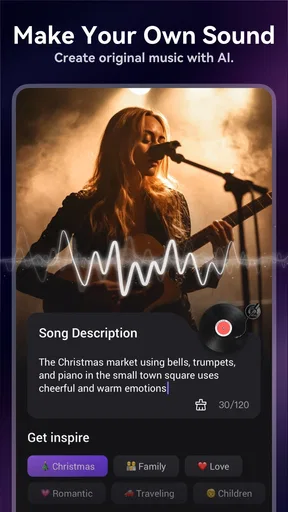
And if you’re worried about creativity, fear not. The app lets you tweak those AI suggestions to your heart’s content. You can play with filters, add music from a pretty extensive library, and even throw in some text overlays. It’s all about making your video uniquely yours.
Worth Reading Before You Choose

Flipboard Shows What News Apps Must Do Beyond the Feed

Switching to Android Auto Means Rethinking Your Driving Routine

Google Calendar Makes a Crowded Week Easier to Manage

Ludo King Makes the Most of the Minutes Between Plans

Baby Panda World Brings Quick Play to Modern Phones, but Its Game Library Feels Busy

ESPN’s Live Game View Makes Following Close Games Easier
Editing Experience
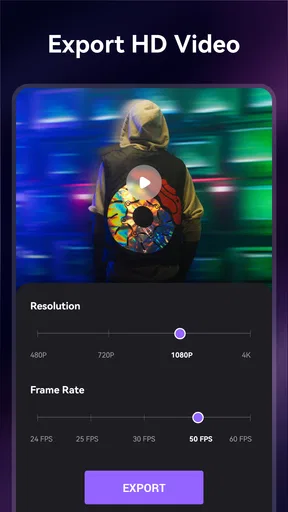
Now, onto the editing experience itself. The timeline is intuitive, allowing you to drag and drop your clips with ease. The editing process is smooth, and I didn’t encounter any lag or crashes, which is always a plus. The app supports HD and even 4K editing, so your videos will look crisp and professional.
One feature I really appreciated was the instant preview. You can see how your edits look in real-time, which saves a ton of time and lets you perfect your video on the fly. Whether you’re trimming a clip or adding a new transition, the app handles it seamlessly.
Making a short video feel considered
A practical workflow is to settle the story before decorating it. I’d first remove footage that repeats the same moment, then put the strongest opening clip near the start and leave a clear ending rather than letting the montage simply stop. Only after that would I test a filter or transition. This order helps me tell whether an effect is improving the sequence or distracting from it, and it keeps a fast editor from turning every clip into a separate visual statement.
Music is useful for setting a mood, but it can also take over a video that depends on speech or ambient sound. I’d preview the full sequence with the chosen track and listen for moments where the original audio matters—someone speaking, a laugh, or a sound that explains what is happening. If the soundtrack makes those moments hard to follow, I’d choose a quieter-feeling track or rethink whether music belongs throughout. The useful skill here is not adding more, but noticing what the viewer needs to hear.
Text deserves the same restraint. A short label can make a place, date, or inside joke easier to understand, while several overlays can make a small screen feel crowded. I’d keep wording brief and check it in the preview against both bright and dark parts of the footage. That last check matters because a title that looks clear over one clip may disappear over the next. These small decisions often do more for readability than another decorative effect.
Where the quick approach has limits
AI suggestions are most helpful when I’m open to a style and want momentum; they are less helpful when I have a precise sequence in mind. If a particular reaction, spoken line, or shot must land at an exact point, I’d review the timeline closely rather than accept an automated arrangement as finished. A recommendation can save decision time, but it cannot know which moment matters most to me. Treating the generated choices as editable drafts is a better way to keep control of the story.
There is also a difference between making a video look polished on a phone and building a carefully controlled edit. A mobile timeline is convenient for trimming, arranging, and adding a quick creative layer, but a longer piece with many scenes can become harder to manage on a small screen. For work that needs detailed audio balancing, exact timing across many layers, or a repeatable professional workflow, I’d choose a more advanced editor instead. Filmigo makes more sense when speed and accessibility matter more than granular control.
Before committing to a longer project, I’d make a short test edit using a few representative clips. That lets me judge whether the available controls, visual style, and music choices fit the project before I spend time arranging everything. It also gives me a chance to check the result on the device where I plan to share or keep it. This is a more reliable decision than assuming that an attractive first screen means every editing task will feel equally straightforward.
Who will get the most from it
I’d recommend this approach to someone who often turns phone footage into casual social posts, small celebrations, or personal recaps and prefers guided choices over a complicated editor. It can also suit a beginner who wants to experiment with cuts, filters, music, and text without first learning a desktop-style workflow. If you enjoy making several versions of a clip, the ability to revise an AI suggestion rather than treat it as final is especially useful.
On the other hand, I’d skip it as my main tool if I needed exact creative control for client work, a long documentary-style edit, or a carefully layered production. I’d also think twice if I only wanted to trim a clip once in a while: a phone’s built-in editor may be enough, with fewer decisions to make. The best choice depends less on whether an app has an AI label and more on whether its editing pace matches the work you actually do.
Editing Experience
Now, onto the editing experience itself. The timeline is intuitive, allowing you to drag and drop your clips with ease. The editing process is smooth, and I didn’t encounter any lag or crashes, which is always a plus. The app supports HD and even 4K editing, so your videos will look crisp and professional.
One feature I really appreciated was the instant preview. You can see how your edits look in real-time, which saves a ton of time and lets you perfect your video on the fly. Whether you’re trimming a clip or adding a new transition, the app handles it seamlessly.
Sharing Your Creations
After you’ve created your masterpiece, sharing it is a cinch. The app allows you to export your videos in various formats and resolutions, making it easy to upload them directly to social media platforms like Instagram, TikTok, or YouTube. There’s also an option to save your work to your device, which is handy if you want to keep a local copy.
The sharing process is straightforward, and the app optimizes your video for each platform, ensuring the quality remains top-notch. No more fiddling with resolution settings or worrying about aspect ratios—it’s all taken care of.
Choosing an export with care
Even when an app makes sharing simple, I’d still check the saved video before posting it. I look for an opening that starts where I expect, text that remains readable, and an ending that doesn’t cut off a word or a beat. If I’m making versions for different audiences, I’d keep a clean copy on the device and treat each social edit as its own final pass, rather than assuming one crop or pacing choice will work everywhere.
That extra review is particularly useful when a video includes a mix of landscape and portrait footage. A platform-friendly presentation can make a clip easier to view, but framing choices may affect what stays visible. I’d pay attention to faces, signs, and anything at the edge of the picture before exporting. For a casual post, a little cropping may be fine; for footage where the full scene matters, I’d prefer a workflow that gives me more deliberate control over framing.
People often wonder whether they need editing experience before trying an app like this. I don’t think so if the goal is a short personal video: starting with a few clips and making one choice at a time is a manageable way to learn. If the goal is a polished, tightly scripted piece, though, I’d plan the sequence first and be ready to adjust the automated suggestions. The easier the tool makes it to begin, the more important it is to slow down for a final viewing.
Price, platform, and a sensible first project
The app is free to download, but optional purchases mean I would not assume every part of the experience is included at no cost. I’d explore the basic workflow before paying for anything, and read each purchase screen closely so I understand what I’m choosing. Its current version is 6.5.3.0, and it requires Android 6.0 or later on Android devices. Those details make it easier to decide whether it fits your phone and your budget before you start a project.
Compared with a basic built-in editor, Filmigo is a better fit when I want more creative treatment in one place, such as a music-led montage with effects and text. Compared with a full-featured desktop program, it prioritizes quick phone editing over fine control and a larger workspace. That middle ground is the point: it can help a casual creator move beyond a plain trim, but it isn’t automatically the right tool for every video just because it offers guided editing.
For a low-risk first try, I’d make a short recap from clips I already know well. I’d keep the selection small, audition the suggested look, remove anything that feels excessive, and watch the exported result from beginning to end. If that process feels enjoyable and the result is close to what I wanted, the app is serving its purpose. If I spend more time correcting the style than editing the story, I’d move to a more manual alternative for that particular project.
Sharing Your Creations
After you’ve created your masterpiece, sharing it is a cinch. The app allows you to export your videos in various formats and resolutions, making it easy to upload them directly to social media platforms like Instagram, TikTok, or YouTube. There’s also an option to save your work to your device, which is handy if you want to keep a local copy.
The sharing process is straightforward, and the app optimizes your video for each platform, ensuring the quality remains top-notch. No more fiddling with resolution settings or worrying about aspect ratios—it’s all taken care of.
Final Thoughts
So, what’s the verdict on AI Video Maker AI Video Editor? In my book, it’s a fantastic tool for anyone looking to dip their toes into video editing or even those who want to streamline their editing process. The AI features are genuinely impressive, and the app’s overall usability makes it accessible to all skill levels.
Whether you’re a vlogger, a social media enthusiast, or someone just looking to have a bit of fun with video, this app has something for you. It’s packed with features that cater to both creativity and convenience, making it a must-try in my opinion.
So go ahead, give AI Video Maker AI Video Editor a whirl. It might just become your go-to app for all things video editing. Happy editing!
Pros
- User-friendly interface
- easy to navigate.
- Wide range of editing tools available.
- Supports high-resolution video output.
- Fast rendering speeds for quick edits.
- Integrates well with social media platforms.
Cons
- Limited free version features.
- In-app purchases can be pricey.
- Occasional bugs during video export.
- Requires a stable internet connection.
- No offline editing capabilities.
FAQs for Video Maker Music Video Editor
What features does the AI Video Maker AI Video Editor offer?
AI Video Maker AI Video Editor provides a range of features including automated video editing, text overlay, music integration, and special effects. It uses AI to simplify the editing process by offering smart suggestions and templates, making it suitable for both beginners and advanced users looking to enhance their video content effortlessly.
Is AI Video Maker AI Video Editor easy to use for beginners?
Absolutely! The app is designed with an intuitive interface that guides users through each step. Its AI-driven tools offer automated editing options, allowing beginners to create professional-quality videos without a steep learning curve. Tutorials and help guides are also available to assist users in mastering the app quickly.
Does the app support multiple video formats?
Yes, AI Video Maker AI Video Editor supports a wide variety of video formats, including MP4, AVI, MOV, and more. This ensures compatibility with most devices and platforms, allowing users to import and export videos seamlessly without the hassle of converting files externally.
Are there in-app purchases or subscriptions required?
AI Video Maker AI Video Editor offers both free and premium versions. The free version provides basic features, while the premium version unlocks advanced tools and effects. Users can choose between a one-time purchase or monthly subscription, depending on their needs and budget, ensuring flexibility in accessing premium content.
Can I share my edited videos directly to social media platforms?
Yes, the app offers direct sharing options to popular social media platforms like Instagram, Facebook, and YouTube. After editing, users can easily upload their videos with a single tap, making it convenient to share their creations with friends, family, and followers instantly.


